Connect your computer to your Bell MTS home network
Ce service est offert uniquement aux clients de MTS au Manitoba.
Afin d’obtenir le soutien relatif à votre région, veuillez sélectionner votre province.
Connect your computer to your Bell MTS home network - Windows 10 & 11
-
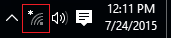
Click on the Network icon in the bottom right hand corner.
-
Icons change based on network status.

Or
-
-
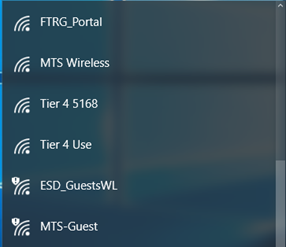
Click the desired network in the Wi-Fi list.
-
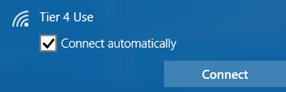
Click Connect.
-
Connect automatically is checked by default, click in the box to uncheck if you do not want connection to auto-connect.
-
- Enter your Wireless Network Key (passphrase).
-
Click Next.
Note: Click and hold the "eye" to temporarily reveal the key.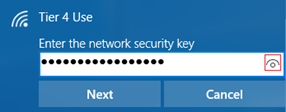
-
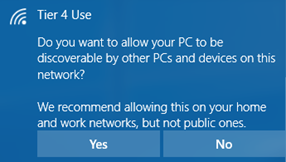
Select the Network Sharing Option you prefer (Yes is normal for home networks).
-
If successful, you will be returned to the Connect To screen showing the selected wireless connection as Connected.

-
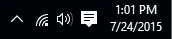
System Tray Icon will now display.
Connect your computer to your Bell MTS home network - Mac OS 10.7 Lion to 10.11 El Capitan
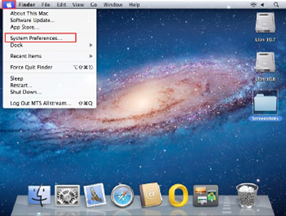
- From the Home Screen, click the Apple icon at the top left hand side of the screen.
-
Click the System Preferences link.
-
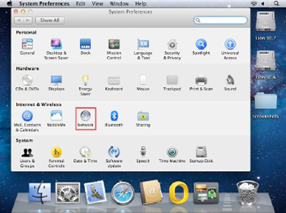
In the System Preferences, click on the Network icon.
-
Click on Wi-Fi in the left hand menu.
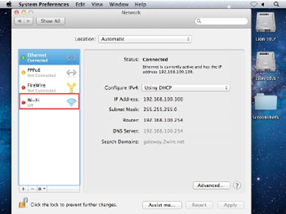
-
If Status: Off, click on Turn Wi-Fi On.
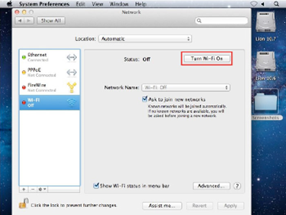
-
The Wi-Fi status will now show as ON. Make sure to also enable the Show Wi-Fi status in menu bar option.
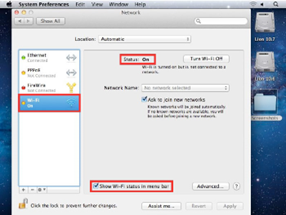
-
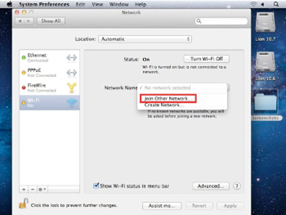
Click on the Network Name drop down menu.
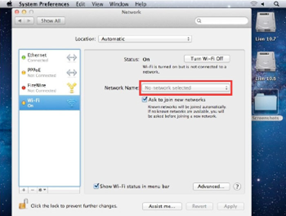
-
Click Join Other Network.
-
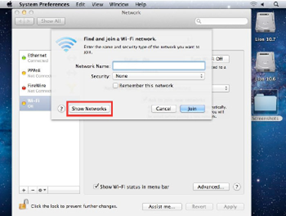
Click Show Networks.
-
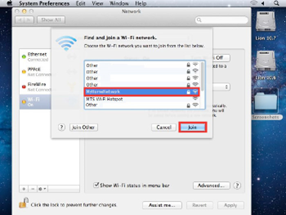
Select your Home Network, and click Join.
-
Enter your Password (Wireless Network Key or passphrase).
-
Check the box Remember this network and click Join.
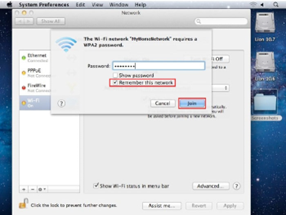
You are now connected to your home network. The Wireless Connection will also be shown as active in the top right hand corner of the home screen.
