Enable Pairing on Your Set-top Box
Note: This service is compatible with iOS devices only (iPad, iPhone, iPod Touch).
- Press the Menu button on your remote control.
- Use the down arrow key to scroll to Settings, press OK.
- Use the down arrow key to scroll to Television.
- Press OK.
- Use the right arrow key to scroll to Second Screen Devices, press OK.
- Ensure that Allow Second Screen Devices is set to Yes.
- If this is set to No press the right arrow key to highlight Change.
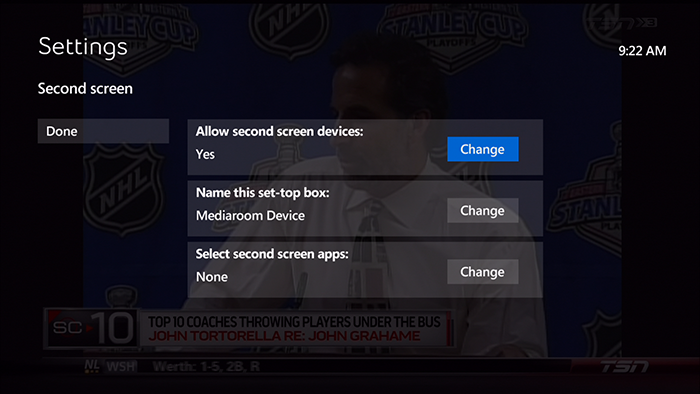
- Press OK.
- Use the arrow keys to select Yes.
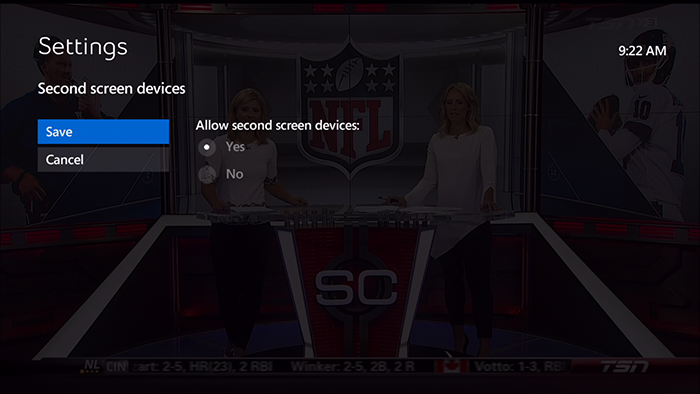
- Press OK.
- Use the arrow keys to highlight Save.
- Press OK.
- If this is set to No press the right arrow key to highlight Change.
- Name This Set-top Box.
- Use the arrow keys to highlight Change.
- Press OK.
- Select a predefined name of a room or create your own name by using the arrow keys to select the letters.
- Press OK to select each letter.
- When name is complete use the arrow keys to highlight Save.
- Press OK.
- Use the arrow keys to highlight Change under Select Second Screen Apps.
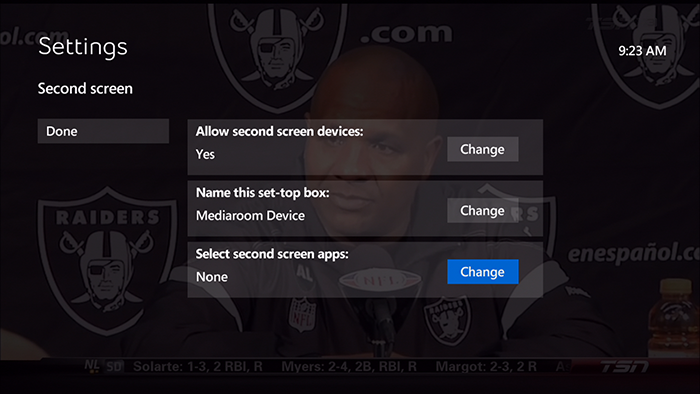
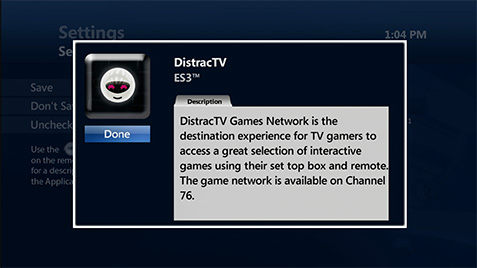
- Use the arrow keys to highlight the check box beside DistracTV and press OK to select it.
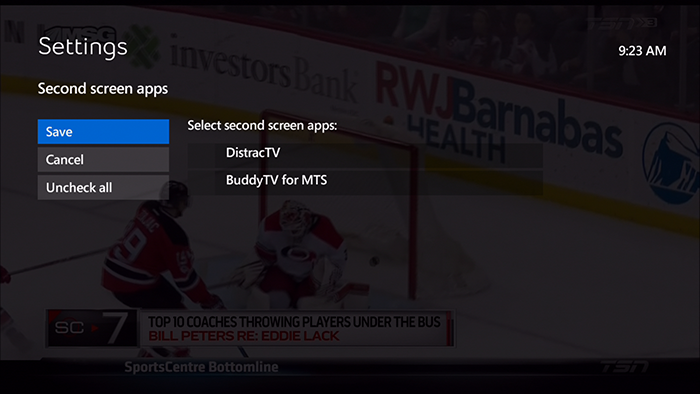
Tip:
- Press the INFO button on your remote to view information about the application you are pairing.
- Use the left arrow to highlight Done and press OK.
- Use the arrow keys to highlight Save and press OK.
- Use the arrow keys to highlight Done and press OK.
Merci. Nous avons bien reçu vos commentaires.
Comme nous nous efforçons de constamment améliorer notre site de soutien, vos commentaires nous sont précieux. Veuillez nous faire part de ce que nous avons bien réussi et de ce que nous pouvons améliorer au sujet de cet article.
Si vous avez besoin d'aide, s'il vous plaît .